Create a Printable Weekly Meal‑Prep Calendar in Google Docs in Under 10 Minutes
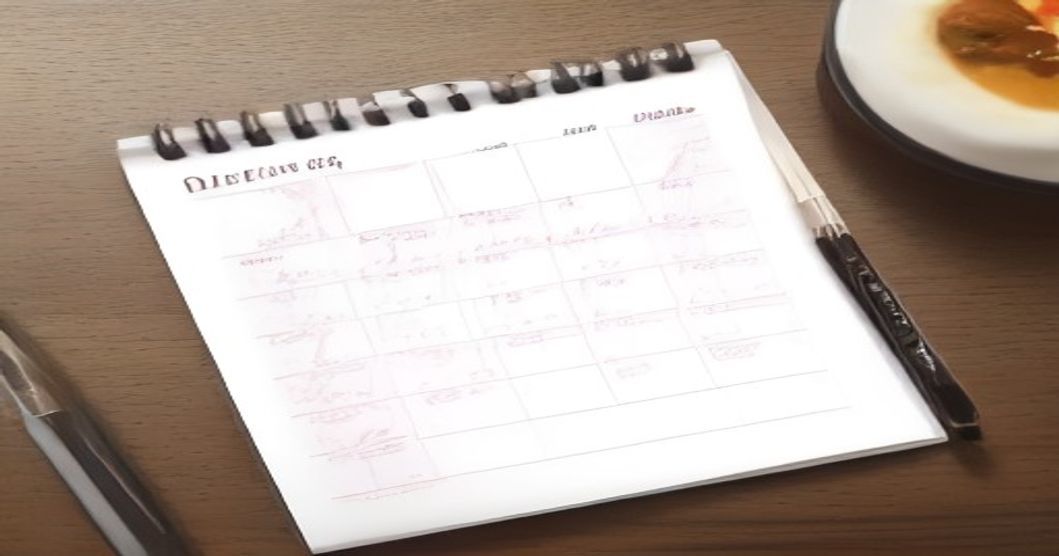
I still remember the chaos of my first week trying to eat healthy while juggling a full‑time job and a toddler. Every evening I’d stare at my fridge, wonder what to cook, and end up ordering pizza. That was the night I decided enough was enough. I pulled up a fresh Google Doc, sketched a simple grid, printed it, and suddenly my meals felt under control. If you’ve ever felt the same, stick with me – you can replicate this in under ten minutes.
Why a Weekly Meal‑Prep Calendar Helps
A visual schedule turns abstract “I should eat veggies” into concrete actions. I’ve found that when I see a blank box labeled “Monday Breakfast,” I’m far less likely to skip planning. It also saves money – no more last‑minute takeout because you already know what’s on the plate.
Setting Up Your Google Doc
1. Open a new blank document
Go to docs.google.com, click Blank. No fancy templates needed.
2. Adjust page orientation
Head to File → Page setup, choose Landscape. The extra width gives you room for a full‑week view without cramping.
3. Set margins to narrow
Change all margins to 0.5 in. This maximizes printable space while keeping the printer happy.
Designing the Calendar Layout
Now the fun part – building the grid.
- Insert a 7‑column table (one for each day) and 5‑row table (Meal slots + header).
- In the first row, type the days of the week. I like bold, all‑caps for instant readability.
- In the first column of the remaining rows, label the meals: Breakfast, Lunch, Snack, Dinner, Notes.
- Select the whole table, click the Paint bucket icon, and choose a light gray fill for header cells – it makes the days pop.
- Resize columns to about 1.5 in each; rows can stay at the default height for now.
Adding Color Sparingly
A splash of color can guide you. I use a pastel green for “Breakfast” and a soft orange for “Dinner.” Keep it subtle; too many colors defeat the purpose of a clean sheet.
Populating Your Meals
Here’s where the 10‑minute magic happens.
- Open a new tab with your favorite recipe site or your personal spreadsheet of go‑to meals.
- Drag‑and‑drop (or copy‑paste) the dish name into the appropriate cell.
- Add a quick note for prep steps, like “pre‑chop veggies” or “cook quinoa Sunday.”
- If a day is a cheat day, just write “Treat” – you don’t have to overthink it.
- Review the week; if two consecutive nights have the same protein, consider swapping to keep variety.
Quick Print Settings
- Choose File → Print.
- In the preview, select Fit to page and ensure Margins are set to “None” (if your printer supports borderless).
- Hit Print, and you’ve got a tangible calendar ready for your fridge.
Pro tip: Laminate the printed sheet and use dry‑erase markers. You can rewrite meals week‑to‑week without re‑printing.
Frequently Asked Questions
How do I share the calendar with my partner?
Just click Share in the top‑right corner, add their email, and set permission to “Viewer.” They can view or download the PDF without editing your master template.
Can I use this on a phone or tablet?
Absolutely. The same document works in the Google Docs app. Tap the three‑dot menu, select Print, and choose “Save as PDF” to keep a digital copy handy.
What if I need more than five rows?
Add rows by right‑clicking the table and selecting Insert row below. You can add “Prep Time” or “Grocery List” rows without breaking the layout.
Wrapping Up
Creating a printable weekly meal‑prep calendar in Google Docs is surprisingly swift once you know the shortcuts. I’ve been using this system for six months now, and my grocery bills have dropped while my energy levels have risen. The best part? It feels like a tiny victory every Sunday night when I fill in the blanks and see a whole week of meals laid out in front of me.
Give it a try tonight. Print it, stick it on your fridge, and watch how a simple grid can turn chaotic eating into a smooth, stress‑free routine. Happy prepping!
By the ReadyTips Team
We research, test, and write practical guides so you don't have to figure things out the hard way. Every article is reviewed by hand before publishing.